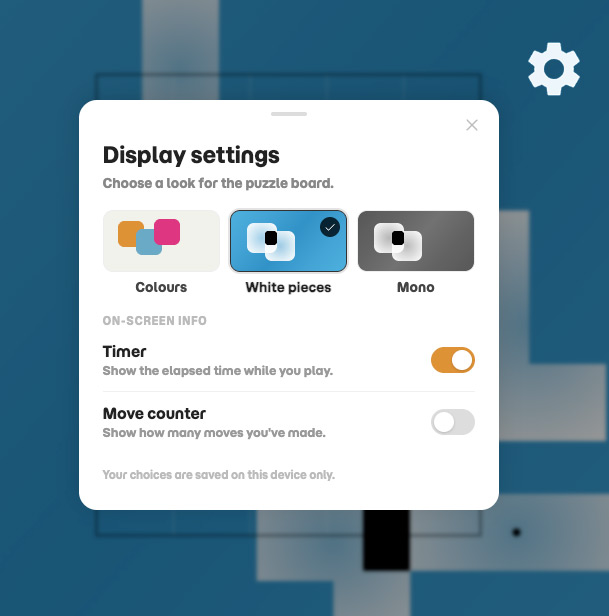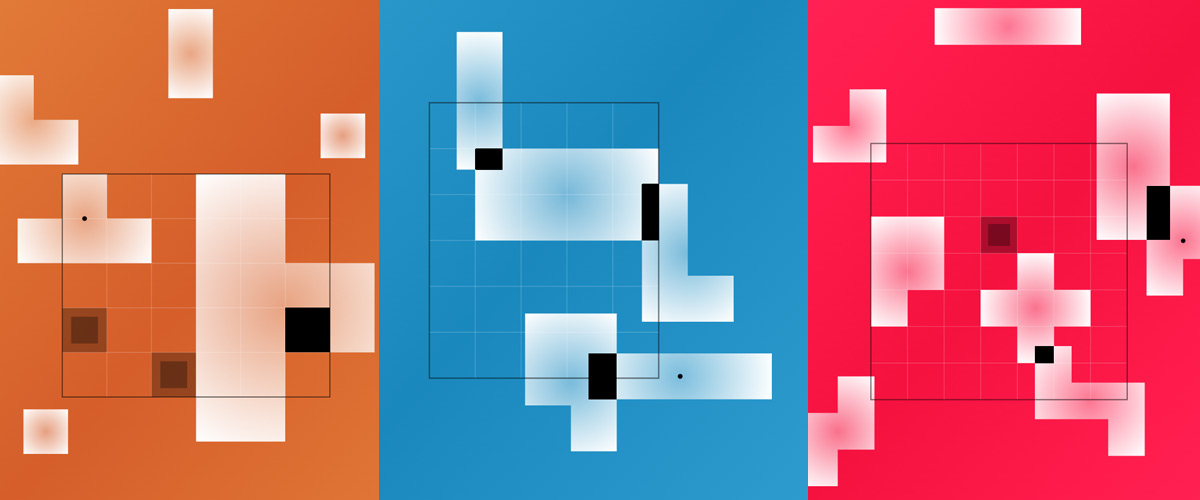
Jigsy has always rendered pieces the same way – bold colour, ink outlines, the classic look. That’s still there by default. It’s just not the only option any more.
Three ways to look at the grid
Colours. The original look, and still the default: Classic, Pro and Extreme pieces in their usual palette, on the same soft paper background you already know.
White pieces. Every piece renders in plain white with a soft centre-to-edge fade, and where pieces overlap the board stamps that area out in black. It reads the grid completely differently – higher contrast, and it puts the shapes themselves front and centre instead of the colour.
Mono. The same white-piece rendering, but on a dark, desaturated backdrop instead of paper. Easier on the eyes in low light, or just if colour isn’t what you’re after that day.
It remembers your choice
Pick a look and it sticks – move between Classic, Pro and Extreme and it carries straight over, no need to set it again each time. That’s saved on this device, so it’ll be there next time you open Jigsy too.
Where to find it
Open the settings (cog icon top right) from any puzzle screen and look for Display settings near the top. Tap a preview swatch to switch – it changes instantly, no reload, no losing your place.